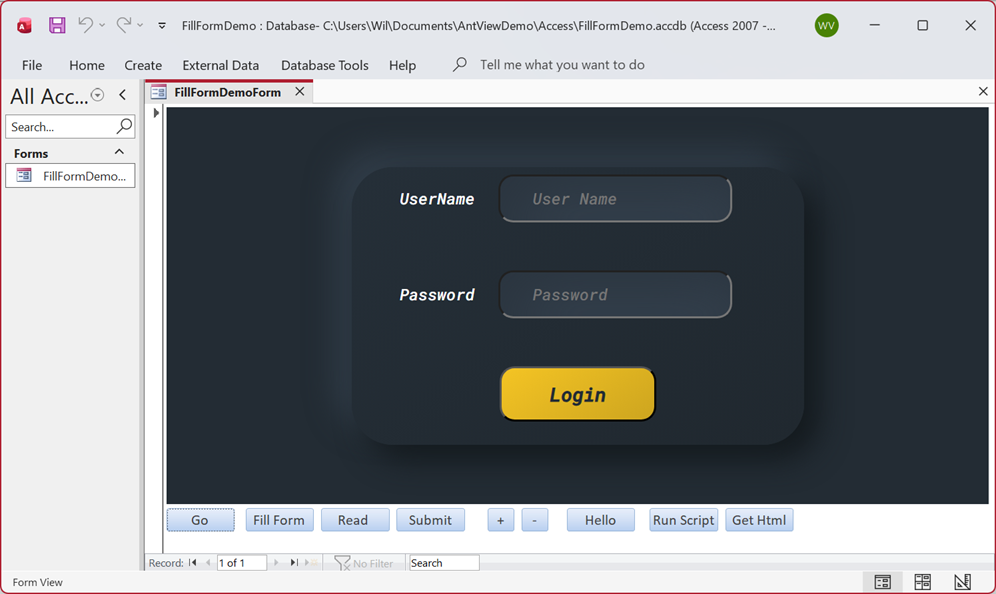
MS Access - Fill Form example
File(s): frmFillFormDemo.accdb, html\loginDemo.html, html\thankYou.html
This example shows how-to use the document interface with Microsoft Access using asynchronous methods and our document object.
This demo works as follows. You press the "Go" button to start and load the .html page from disk that is displayed in the screenshot above. Then you can use the "Fill Form" button to automatically fill in the "name" and "password" fields.
The "Read" button next to it can be used to read these fields from the html document and will display them in msgBox messages.
The "Submit" button will invoke submit on html document, so it works the same as clicking the "Submit" button in the rendered html form.
With the "+" button you can zoom in on the html and the "-" button to zoom out. The "Hello" button shows an html alert saying "hello".
The "Run Script" button runs a line of javascript that extracts the html from the html document and shows that in an msgBox.
The "Get Html" button does the same, but it uses the RequestCurrentHtml method from the document interface.
The relevant part of the html in loginDemo.html looks like this:
<form id="login" class="login" action="thankYou.html">
<div class="loginName">
<label for="username">UserName</label>
<input type="text" name="username" placeholder="User Name" required />
</div>
<div class="loginPassword">
<label for="password">Password</label>
<input type="password" name="password" placeholder="Password" required />
</div>
<div class="loginRemember">
<input type="checkbox" name="remember" value="memory" />
<label for="remember">Remember UserName</label>
</div>
<div class="loginBtn">
<button id="submit" type="submit" name="submit">Login</button>
</div>
</form>
OK, with that out of the way, let's see how our code looks like.
Option Compare Database
Private WithEvents Document As AntViewAx2.AntViewDocument
Private Sub Form_Load()
' create a document object instance
Set Document = CreateObject("AntViewAx2.AntViewDocument")
EdgeWebBrowser.CreateWebView
EdgeWebBrowser.EventsUseHexadecimal = True
Form_Resize
End Sub
We first create a private variable that can hold our document object.
In Form_Load the document object is created and assigned to the private variable.
The EventsUseHexadecimal has to be set so we can catch the OnNavigationCompletedHex event from within VBA as the VBA scripting engine doesn't support the Int64 data type.
Private Sub EdgeWebBrowser_OnNavigationCompletedHex(ByVal IsSuccess As Boolean, ByVal WebErrorStatus As AntViewAx2.TxWebErrorStatus, ByVal NavigationIdHex As String)
If IsSuccess Then
FillFormButton.Enabled = True
ReadFormButton.Enabled = True
SubmitButton.Enabled = True
ZoomInButton.Enabled = True
ZoomOutButton.Enabled = True
End If
End Sub
We use that event to enable the buttons that only work when there's a document loaded in the browser component.
The click event for the "Go" button has the following snippet.
Private Sub GoButton_Click()
Dim Path As String
Path = CurrentProject.Path
EdgeWebBrowser.Navigate (Path & "\html\loginDemo.html")
End Sub
So it just gets the path of our access file and uses the Navigate method to load the loginDemo.html file from the html subfolder.
The "Fill Form" button works like this:
Private Sub FillFormButton_Click()
Dim Doc As New AntViewAx2.AntViewDocument
Doc.CurrentBrowser = EdgeWebBrowser.Object
Doc.ElementValueByName("username") = "Mr. Smith"
Doc.ElementValueByName("password") = "supersecret"
End Sub
As an example of a different mechanism for using the document interface, we're not using the "Document" variable that we declared, but instead create a new local "Doc" variable that we instantiate an object for, using the VBA - Dim As <var> New mechanism.
The document object then connects to our AntView object - which has the html document already loaded via the "Go" button - with the CurrentBrowser property.
Once the AntView object has been connected, we can use our document object to interact with the html in the AntView object.
In this case we're setting html <input> elements by their Name attributes using ElementValueByName.
For the "Read" button the following code is what makes it work:
Private Sub ReadFormButton_Click()
Document.CurrentBrowser = EdgeWebBrowser.Object
Document.RequestElementValueByName "username"
Document.RequestElementValueByName "password"
End Sub
Like we did before, we make sure that the document object is connected to the AntView object via the CurrentBrowser property. The we ask the browser object to return of the value of the html input elements "username" and "password".
The WebView2 native interface is asynchronous and as such the answer is returned via an event.
Private Sub Document_OnRequestElementValueByName(ByVal Name As String, ByVal Value As String, ByVal Error As Long)
MsgBox ("Name " & Name & " = " & Value)
End Sub
The OnRequestElementValueByName event is the event that is raised.
For the Zoom in/out functionality we only need these few lines of code:
Private Sub ZoomInButton_Click()
EdgeWebBrowser.ZoomFactor = EdgeWebBrowser.ZoomFactor + 0.1
End Sub
Private Sub ZoomOutButton_Click()
EdgeWebBrowser.ZoomFactor = EdgeWebBrowser.ZoomFactor - 0.1
End Sub
As you can see it is all about the ZoomFactor property.
The "Hello" Button consists of only one line:
Private Sub HelloButton_Click()
EdgeWebBrowser.ExecuteScript "alert('Hello Browser');"
End Sub
We only run the javascript alert function here to display a "Hello Browser" message box in the browser.
No further magic than that.
The "Run script" button is a little bit more advanced as it also returns a value, as before, in an asynchronous way.
Private Sub ScriptButton_Click()
Dim Script As String
Script = "new XMLSerializer().serializeToString(document);"
EdgeWebBrowser.ExecuteScript Script
End Sub
The Script variable here contains the javascript "new XMLSerializer().serializeToString(document);" which only task here is to return the html of the current page rendered in the browser.
This data is returned in the OnExecuteScript event:
Private Sub EdgeWebBrowser_OnExecuteScript(ByVal HResult As Long, ByVal JsonObject As String)
Dim Json As String
' Use the Document json decode function to make the result more readable
Document.CurrentBrowser = EdgeWebBrowser.Object
Json = Document.DecodeJsonObjectString(JsonObject)
If Json <> "" Then
MsgBox Json
End If
End Sub
We could have just passed the value of JsonObject straight into the MsgBox command. However as it is returned in a JSON string, it is a nice opportunity to show that you can use the DecodeJsonObjectString function to decode the json data and display that as html.
AntView - The MS Edge WebView2 ActiveX control Date last changed: 2026/07/30